

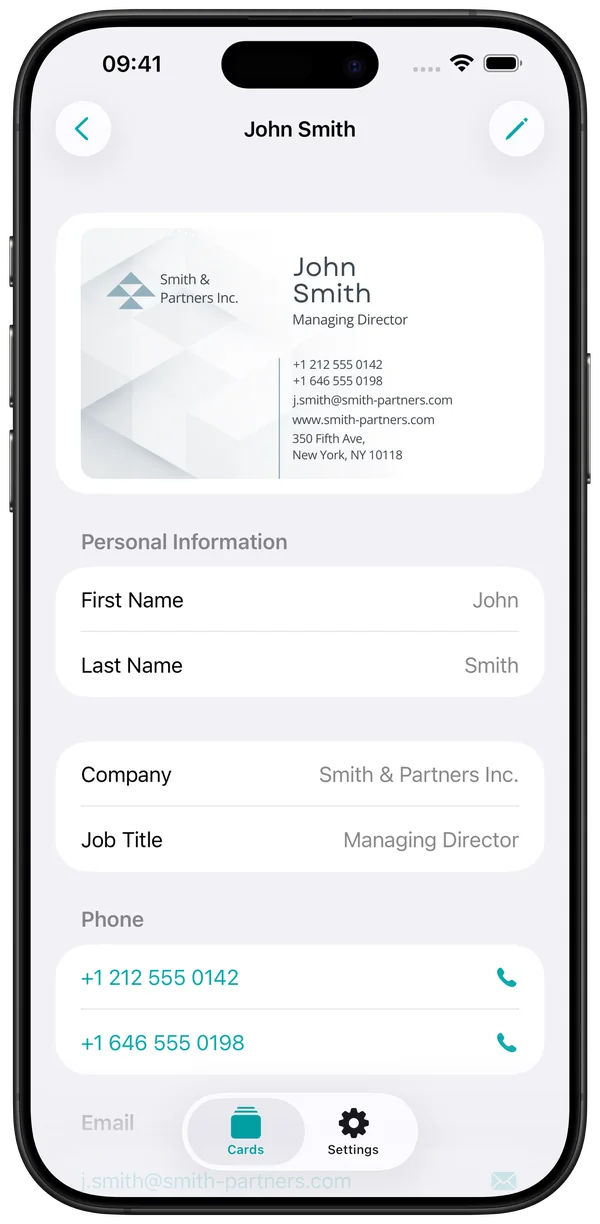

One tap saves a scanned card to your iPhone Contacts, and you can choose which Contacts group it goes into. Groups, such as an event or a client list, then work with the iPhone tools you already use. Contacts permission is requested only when you save.
- One-tap save to iPhone Contacts
- Choose a Contacts group to save into
- Permission asked only when you first save a contact
- Cards stay in Scard as well, with tags and notes
One tap from scan to Contacts
After a scan you land on the card detail with the fields filled in. When they look right, tap save to Contacts. Scard writes the contact to your iPhone address book: name, job title, company, phone numbers, email addresses, website and postal address. The contact then behaves like any other, in Phone, Messages and Mail.
Scard asks for Contacts access only when you save for the first time. If you never save to Contacts, it never asks. Saving a contact does not remove the card from Scard, so you keep the tags and notes there. Check the fields before you save, because a typo in the name carries into your address book. The step-by-step Contacts guide covers the whole path, including a batch of cards.
Why groups help
A flat address book of 800 names is hard to use. Contacts groups give it structure that survives outside Scard. Make a group per event, per client or per project, and you can select that group in Mail to address everyone in it, or filter Contacts to see only those people.
Choosing the group at save time is the cheap moment to do it. Compare two situations. You return from a conference with 40 cards and save them all into a group named for the event, so a follow-up list exists the moment you finish. Or you save them ungrouped and spend an evening, weeks later, trying to remember which of 800 people came from which event.
Groups and tags complement each other. Groups live in your iPhone Contacts and are useful for mailing and for finding people in the standard apps. Tags live in Scard and are useful for filtering your card collection and for flexible labels. Use a group for the event and a tag for the status, and you can reach a card either way. See tags and search.
Pro, permissions and what to check
Scanning more than the 2 free scans needs Scard Pro (subscription or lifetime purchase). Saving a scanned card to Contacts or to the photo library is not an extra paid step. Check the current plans in the app, since they vary by country.
Scard needs Contacts permission to save; you can change this in iPhone Settings if you refuse it the first time. Photos permission is separate and add-only, asked for only when you save a card image.
If the person is already in your address book, keep in mind that Scard checks its own collection for duplicates when you scan, as the duplicate detection page explains, but it does not rewrite contacts you created elsewhere. Look for an existing entry before saving a card for someone you know you have met. For follow-up timing, the post on follow-up after a trade show has practical advice.
A naming scheme for groups
Groups are most useful when the names are predictable. Use the event name and year for events, the company name for key clients, and a short label for ongoing lists such as partners or candidates. Create the group in the Contacts app first, then pick it when you save from Scard.
Avoid creating a new group for every conversation. A group with two people is rarely worth maintaining, and a long list of groups is harder to use than none. A good test is whether you would ever email or look at that group as a whole.
Once cards sit in groups, you can use standard iPhone tools on them: address a message to a whole group in Mail, or scroll a group in Contacts before a meeting. Scard stays the place for tags, notes and exports, and Contacts becomes the place for communication.
If you are unsure about a particular contact, keep the card in Scard first, tag it, and save to Contacts later once you know the person is worth a place in your address book.
Scanning beyond the 2 free scans needs Scard Pro. Scard checks duplicates within its own collection, not against contacts created elsewhere.
How to save a card to a Contacts group
- Scan and review
Scan the card and correct the fields on the detail screen.
- Tap save to Contacts
Allow Contacts access if asked.
- Choose the group
Pick the Contacts group for the event or client.
- Confirm in Contacts
Open the Contacts app to check the contact and the group.
Frequently asked questions
Can I choose which Contacts group a card goes into?
Yes. You pick a group when you save.
Does saving remove the card from Scard?
No. The card stays in Scard with its tags and notes.
When does Scard ask for Contacts access?
Only when you save a card to Contacts.
Do I need Pro to save?
No. Saving a scanned card to Contacts is included. Pro is only needed to keep scanning after the 2 free scans.