

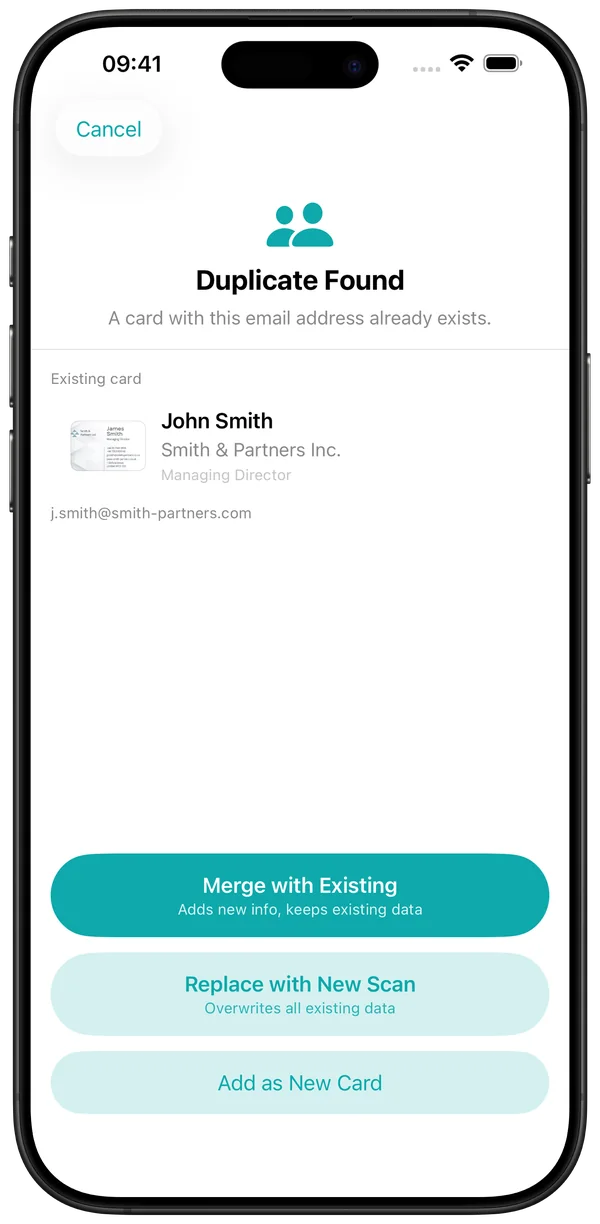

When you scan a card, Scard checks your collection for an existing match, first by email address and then by name plus company. If it finds one, you choose: merge with the existing card, replace it with the new scan, or add the scan as a new card.
- Match order: email first, then name plus company
- Merge adds new information and keeps existing data
- Replace overwrites the old card with the new scan
- Add as new keeps both cards
How the matching works
Duplicates appear for ordinary reasons. You meet someone at a conference in March and again at a client site in October. A colleague scans a card you already scanned. Someone hands you a second card because they forgot they gave you one. Left alone, each of these becomes another row in your contacts, and a mailing to the collection goes out twice.
Scard checks at scan time. It compares the new card with your collection, starting with the email address, because an email is the most reliable identifier on a card. If there is no email match, it compares name and company together. Name alone is not treated as a match, since many people share a name; the company has to agree as well.
The check happens while the card is being added, so you decide with the card still in front of you and there is no cleanup job afterward.
Merge, replace or add as new
When a possible duplicate is found, a sheet shows the match and gives you three choices.
- Merge with existing. The new scan adds information the old card lacks, such as a mobile number or a new title, and your existing data is kept. Use this when the second card has extra details.
- Replace with the new scan. The new scan overwrites the old card. Use this when the person has changed role or company and the old data is out of date.
- Add as new card. Both cards are kept. Use this when it really is a different person, or the same person in a different job you want to track separately.
Merging is the safe default for most repeat meetings because it never discards what you already have. Replacing is cleaner when information has genuinely changed, but it does overwrite, so glance at the old fields first.
Where duplicates still slip through
Matching is deliberately conservative, which means some duplicates will not be caught. Two cards for the same person with different email addresses, for example a work and a personal one, will only match if the name and company also agree. A name spelled differently on each card, or a company written two ways, can defeat the name-plus-company match. Scard cannot know that “IBM” and “International Business Machines” are the same.
Two habits help. Review the fields before saving so spelling is consistent across cards. And search for a person’s name before a big follow-up send; search by name, company or email finds near-matches the automatic check missed.
Duplicates matter most at events, where the same person may hand you a card twice in one day; the trade show page covers that case. If you export to a spreadsheet or CRM, deduplicating first saves cleanup there, as described in the organizing guide and the Excel guide.
Keeping your collection clean over time
Detection at scan time helps prevent duplicates, but a collection ages. People change jobs and addresses, and an old card goes stale. When you meet someone again and scan their new card, the match by email or by name plus company is your chance to refresh the record.
A light routine works well: after each event, filter by the event tag, resolve any duplicate prompts, and spot-check a few cards. Once or twice a year, search your most active contacts by company and merge anything that looks doubled. This takes minutes and keeps exports and mailings accurate.
Cleaner data also protects relationships. A person who receives the same message twice, or is greeted by the wrong title, notices. Treat the duplicate sheet as a small quality check.
If the duplicate sheet appears for a person you do not remember meeting, open the existing card and read its notes; the answer is often there, and it is a useful reminder before you write to them.
Detection compares email, then name plus company. It will miss a duplicate that uses a different email, a different spelling or a differently written company name.
How to handle a duplicate
- Scan the card
Scan as usual. If a match exists, the duplicate sheet appears.
- Compare
Look at which card was matched and which fields differ.
- Choose an action
Pick merge with existing, replace with the new scan, or add as a new card.
- Check the result
Open the card and confirm the fields look right before moving on.
Frequently asked questions
How does Scard decide a card is a duplicate?
It matches by email address first, then by name plus company.
What does merge do?
It adds new information from the scan to the existing card and keeps the data already there.
Can I keep both cards?
Yes. Choose add as new card.
Will it catch every duplicate?
No. A different email or a different spelling of name or company may not match, so search before big follow-ups.