

Scard gives sales reps a fast way to log the people they meet on the road. Scan the card, add a note about the conversation, tag the account or event, and let duplicate detection catch people you already have. A CSV export carries it all into your CRM.
- Notes and tags record what was discussed and which account it belongs to
- Duplicate detection matches by email, then name and company
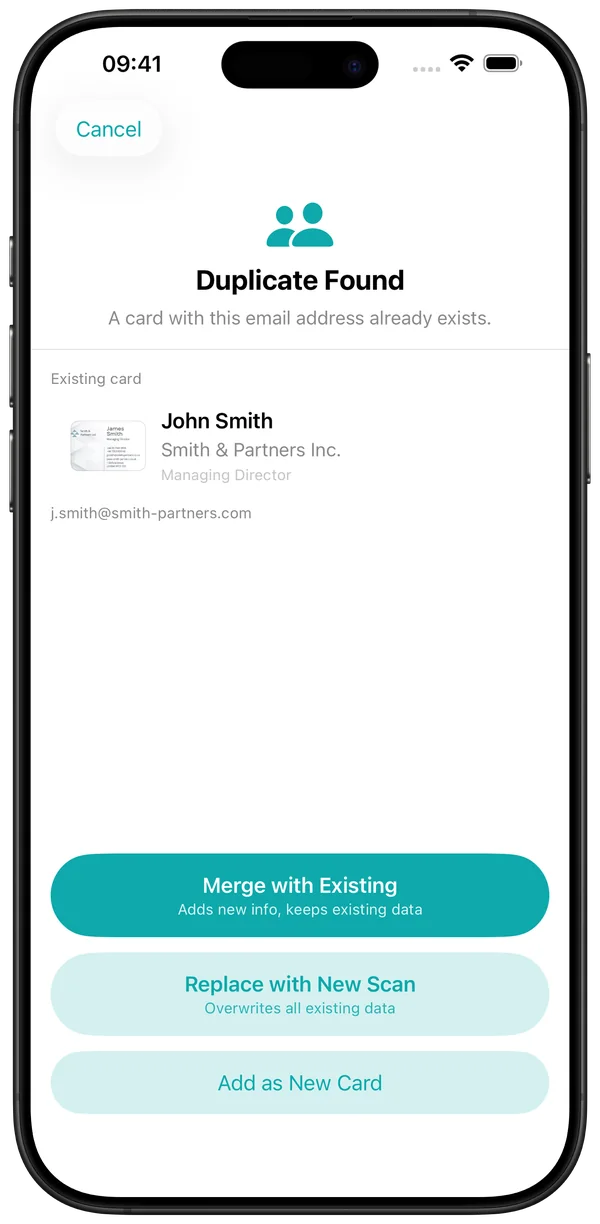
- Merge, replace or add as new when a repeat contact is found
- CSV and vCard export, since there is no direct CRM integration
What reps actually lose
The business card itself is rarely the loss. The loss is what you knew when you walked out of the meeting and forgot by Thursday: who the real decision maker was, what they said about their current supplier, what you promised to send. A card in a pocket carries a name and a number and none of that.
A rep who visits six customers in a day can scan each card in the car before driving on. The note field is the useful part. Two lines will do: budget cycle ends in March, wants a demo with the ops lead, send the integration sheet. Add a tag for the account or the territory, and the card is a lead record that you can read in a month and still understand. Because the scanner works offline, a visit to a plant with no signal does not change the routine.
Compare that with the alternative of typing the contact into a CRM from a phone keyboard in a parking lot. Most reps skip it and promise themselves they will do it at the end of the week. Scanning is quick enough that it happens.
Duplicates are a sales problem
Anyone who works an account for a year meets the same people repeatedly. The buyer you met at a fair in spring hands you a new card in autumn, perhaps with a new title. Without a check, you end up with two entries, and your next export puts both into the CRM.
Scard looks for a match when you save. It compares email first, then name plus company. If it finds one, you choose: merge with the existing card, which adds the new information and keeps what is already there, replace the old card with the new scan, or add it as a separate card. Merge is usually right for a promotion or a new phone number. Add as new is right if two different people share a name at the same company. The duplicate detection page shows what the sheet looks like.
A tidy collection pays off at export time, because the CSV you import has one row per person.
From the phone to the CRM
Scard does not connect to Salesforce, HubSpot, Zoho or any other CRM. The bridge is a file, and the honest description of that bridge is a short monthly or weekly chore. Export the collection as a CSV, which opens in Excel with accents intact, and import it using the tool's own import wizard. Your tags and notes travel with it, so you can map them to a field or to a list. The Salesforce import post and the Zoho post show the field mapping for those tools.
For single contacts, a vCard sent through the share sheet is quicker, for example when you want a colleague to have a customer's details by the end of the day. You can also save to iPhone Contacts and pick a group, so the person shows up when they call you.
If your company has a strict CRM policy, ask your admin how imports are meant to happen before you start. Some teams only allow certain fields to be created by import.
Trade shows and quotas
Reps who work shows face a burst: forty cards in a day, then a week of follow-up. Tag the show once, scan in the evening or between conversations, and filter by that tag when you build your list. The trade show workflow covers that routine in more detail, and the lead capture checklist is a good pre-event read.
A last point on routine: set aside ten minutes on Friday to clear the week. Merge the duplicates Scard flagged, fix any field that was sorted oddly, and tidy the tags so the account names match the ones in your CRM. That way the next export needs no cleaning, and Monday starts with a list you can trust.
Scard is a personal tool. It does not assign leads, score them or report to a manager, and it does not claim to.
Scard is a personal capture tool, not a CRM. It has no team sharing, lead scoring or direct CRM connection. Free scans are limited to 2; unlimited scanning needs Scard Pro.
How to log a meeting with Scard
- Scan the card
Use the camera frame right after the meeting and crop the card edges.
- Write the note
Add two lines on what was discussed and what you promised, plus a tag for the account or event.
- Resolve duplicates
If the contact exists, merge, replace or add as a new card.
- Export to your CRM
Export the collection as CSV and import it with your CRM's import tool.
Frequently asked questions
Does Scard integrate with Salesforce or HubSpot?
No. Export a CSV or vCard and use your CRM's import function.
What happens if I scan someone twice?
Scard detects the match by email, or by name and company, and lets you merge, replace or add a new card.
Can I add notes about the conversation?
Yes. Each card has a notes field and tags, and both are included when you export.
Can my team share one collection?
No. Cards sync across your own devices through your iCloud. You share through exports.