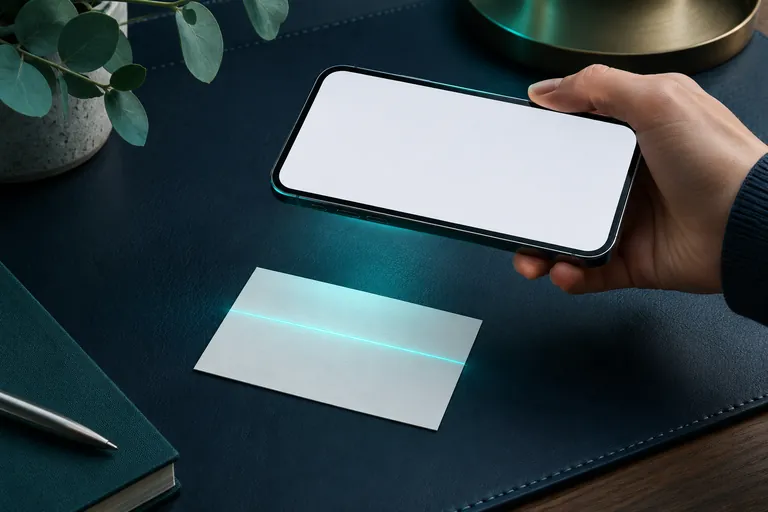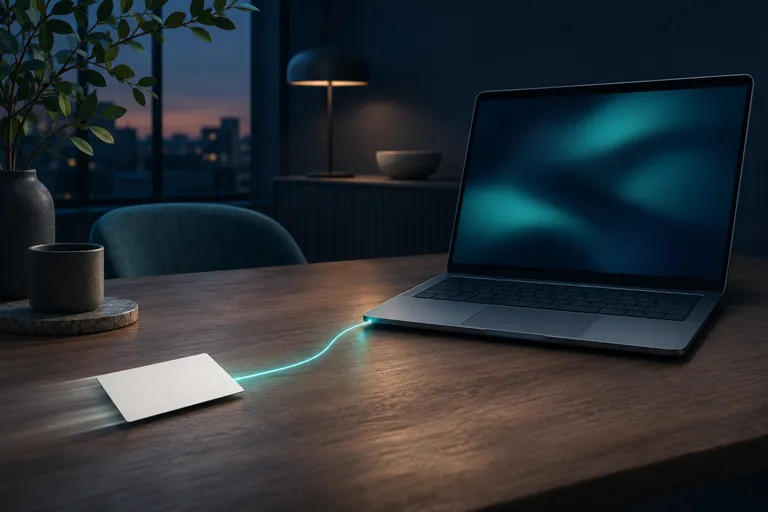

For the best business card scanner app, look for on-device OCR (it works offline and card images stay on your phone), no forced account, free export to CSV and vCard, every field including fax, and tags with search. The checklist below tests any app on those points.
How to Judge a Business Card Scanner (Without the Marketing)
"Best" depends on what you value, but for anyone scanning other people's contact details, a few criteria matter more than a slick interface. This is a neutral checklist. Run any app you're considering through it, including this one. Each point explains why it matters, then notes how Scard answers it, so you can decide for yourself.
- Does the OCR run on-device, and does it work offline? On-device OCR means the reading happens on your phone, not on someone's server, so it works with no signal, and card images aren't shipped off to be processed. Scard: yes. OCR uses Apple Vision on-device and works fully offline. When you're online, only the recognized text (never the image) is sent anonymously to an AI service for field sorting; offline, an on-device parser takes over.
- Is an account required? A forced sign-up usually means your data lives in a vendor's cloud and is tied to a login you have to trust. Scard: no account required. You start scanning immediately.
- Where does your data actually live? Ask where scans are stored and who can see them. Scard: card images stay on your device and your collection syncs privately via your own iCloud, not a vendor's server. Your data isn't sold.
Export Freedom, Field Coverage, and Organization
The rest of the checklist is about whether the app actually fits your workflow and whether it lets you leave.
- Can you export freely? An app that traps your contacts is a liability. Look for open formats you can take anywhere. Scard: exports to CSV (Excel-compatible), vCard, and plain text, plus one-tap save to your native iPhone Contacts.
- Does it cover every field, including fax? Many scanners grab name and phone and drop the rest. Full coverage saves re-typing. Scard: extracts full name, job title, company, phone numbers, fax, email, website, and address.
- Can you tag and search? A scanner without organization just makes a digital pile. Scard: custom tags by event, industry, or any category, with search by tag, name, or company, plus Spotlight from the home screen.
- Does it handle duplicates? Scanning the same person twice shouldn't clutter your address book. Scard: detects duplicates by email first, then name and company, then lets you merge, replace, or add as new.
- Does it read cards in your languages? International events mean international cards. Scard: recognizes business cards in 22 languages.
Score any app against these points and the "best" one for you usually becomes clear: the one that reads cards well, respects your privacy, and lets you take your data with you.
Why Privacy Belongs at the Top of the List
It's easy to treat privacy as a bonus feature. For a business card scanner it's a core requirement, because the data you're scanning isn't yours. It's someone else's name, direct line, and work email, handed to you in a moment of trust. Uploading that to an anonymous server to be processed, stored, or mined puts them at risk as well as you.
That's why on-device OCR and "no account" sit at the top of the checklist. An app that reads cards on the device and syncs only through your personal iCloud keeps that trust intact. It also helps you under data-protection rules like GDPR: being able to say "the card images never left the device" is a stronger position than "we uploaded it to a converter website."
Scard was built around this priority: on-device Apple Vision OCR, no account, card images that never leave the device (when online, only text is sent, anonymously), private iCloud sync, and export in open formats. The checklist above is a set of questions worth asking of any app before you point your camera at a stranger's card.
How to Evaluate a Business Card Scanner App
- Check where the OCR runs
Confirm the app processes cards on-device and works offline, so images aren't sent to a third-party server.
- Look for a forced account
See whether you can start scanning without signing up. A required account usually means cloud-stored data tied to a login.
- Ask where your data lives
Find out where scans are stored and whether they're shared or sold. Private, on-device or personal-iCloud storage is the safer answer.
- Test export freedom and field coverage
Verify you can export to open formats like CSV and vCard, and that the app captures every field, including fax.
- Try tags, search, and duplicate handling
Check that you can tag, search by name or company, and merge duplicates so your collection stays organized.
Frequently Asked Questions
What should I look for in a business card scanner app?
On-device OCR that works offline, no forced account, card images kept on-device, free export to CSV and vCard, full field coverage including fax, and tags with search.
Is a business card scanner that works offline better?
For privacy, yes. On-device OCR means card images are read on your phone rather than uploaded to a server, so it works without a connection and keeps contact data under your control.
Do I need to create an account to scan business cards?
No. Scard requires no account: you download, scan, and save, with your collection syncing only through your own private iCloud.