
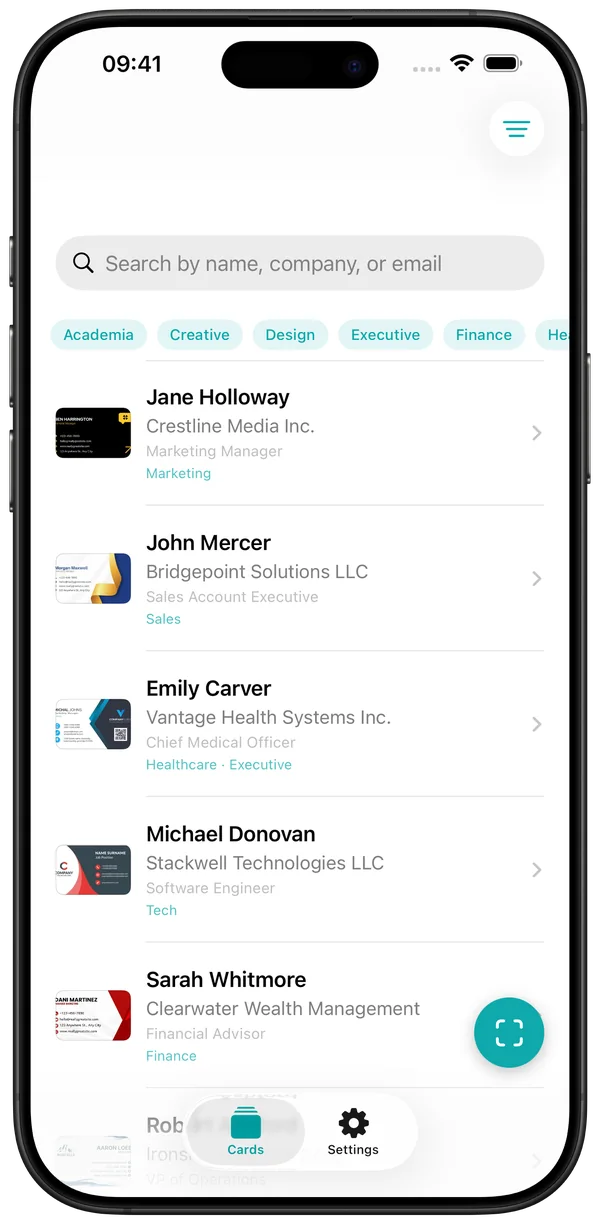
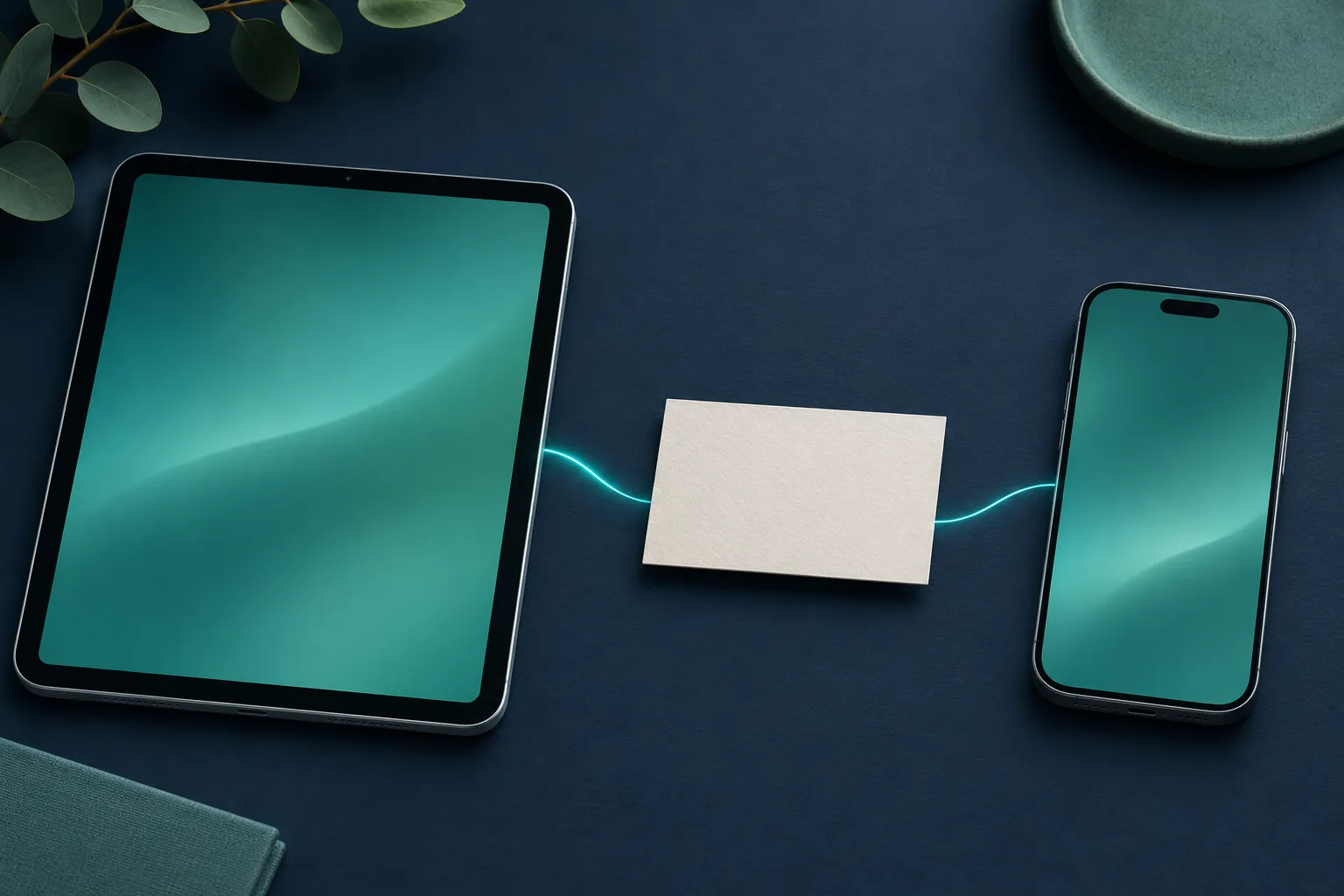
Scard runs on iPhone and iPad with iOS 17 or later. On iPad it works in all orientations, and your cards sync between your devices through your own iCloud, so a card scanned on your iPhone shows up on your iPad. There is no Scard account to set up.
- Runs on iPhone and iPad, iOS 17 or later
- iPad supports all orientations; iPhone uses portrait
- Cards sync across your devices through your own iCloud
- No account: iCloud sync uses the Apple ID already on your devices
Why use Scard on an iPad
An iPad is rarely the device you hold up to a card at a conference, but it is often the device you sit down with afterward. The screen is larger, a keyboard may be attached, and reviewing thirty cards from a trade fair is easier when you can see the whole list and each card’s fields at once.
Scard works on both. The app works on iPad in all orientations, so it follows the way you have the tablet set up, on a desk, in a stand or in a keyboard case. The iPhone version is designed for portrait use, which fits one-handed scanning. If your iPad has a camera you are comfortable using, you can scan on it directly; otherwise treat it as the place where you review, correct, tag and export.
How iCloud sync between iPhone and iPad works
Scard stores your cards on the device using SwiftData and syncs them through CloudKit, which means your own iCloud account. You do not create a Scard login. If your iPhone and iPad are signed in to the same Apple ID with iCloud enabled, the collection appears on both.
In practice: scan at a booth on your iPhone, then open Scard on your iPad that evening and the cards are there to review. Edits you make on one device carry to the other. Tags you add on the iPad are available for filtering on the iPhone.
Two caveats are worth knowing. Sync needs a connection, so cards scanned offline appear on your other device after the phone reconnects. And if iCloud is unavailable, for example because you are signed out or storage is full, Scard falls back to storing cards locally on that device and will not sync until iCloud works again. Because the data goes through your own iCloud and not a vendor server, the privacy page is the place to read how the rest of the data flow works.
A practical iPad workflow after an event
Once the cards are on your iPad, a short review pass pays off. Open the list, filter by the tag you used for the event, and go through each card. Fix names, confirm titles, and add a note about what you discussed while it is still fresh. The tags and search tools make this quick, and duplicates are flagged when you scan, so you are not cleaning them up later.
Then decide where each card goes. Save the ones you want to your iPhone Contacts, in a group for the event, or export the whole collection as CSV for a spreadsheet or as PDF. A single card can be shared as vCard, image or plain text from the share sheet. The organizing guide describes a follow-up routine that works well on a larger screen.
If you are comparing devices, there is nothing you lose on iPad: the same fields are extracted, the same export options exist, and recognition is the same on-device Apple Vision.
What stays the same on both devices
Several things stay constant between devices: recognition (on-device Apple Vision), the extracted fields, duplicate checks, tags, search, Spotlight indexing and export. The privacy position is the same too: images stay on your devices and only recognized text is sent for AI sorting when you are online.
Differences are mostly about ergonomics. The iPhone is best for the act of scanning because it is one-handed and always with you. The iPad is best for the review, the cleanup and the export. Treat them as two ends of the same workflow.
If you scan at events, the trade show page shows how the iPhone does the capture and the larger screen helps afterwards.
iCloud sync needs both devices signed in to the same Apple ID with iCloud enabled; without iCloud, cards stay local to each device. Free scans are limited to 2; unlimited scanning needs Pro.
How to use Scard on iPhone and iPad
- Install on both devices
Download Scard on your iPhone and iPad. Both need iOS 17 or later.
- Use the same iCloud account
Sign in to the same Apple ID on both devices and keep iCloud enabled.
- Scan on either device
Scan on your iPhone at the event, or on your iPad if you prefer.
- Review on the larger screen
Open the list on your iPad, filter by tag, correct fields and export or save to Contacts.
Frequently asked questions
Does Scard run on iPad?
Yes, on iPad with iOS 17 or later, in all orientations.
Do my cards sync between iPhone and iPad?
Yes, through your own iCloud. No Scard account is needed.
What if iCloud is off?
Scard stores cards locally on that device and does not sync until iCloud is available.
Can I scan on my iPad?
You can, if you are comfortable using the iPad camera for it. Many people scan on the iPhone and review on the iPad.